How to show custom fields on WordPress
25 February 2026With many of our Truesilver Website packages, we can add custom fields to help you make managing your site and more advanced tasks easier.
However, custom fields are hidden automatically by the system so the first time you use them, you’ll need to follow a couple of easy steps to show the options.
Step 1: Login to WordPress
Step 2: Go to Dashboard > Pages and then select Edit on the page you would like to edit (usually the homepage/ Front Page)
Step 3: Click the 3 little dots in the top right of the WordPress screen next to the blue Save/Publish button
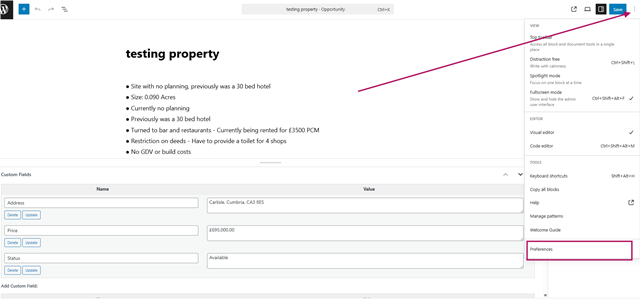
Step 4: Then select Preferences at the bottom (shown above in the bottom right of the picture)
Step 5: Then scroll down on that first General tab to Advanced and select Show Custom Fields
Step 6: A button will appear to allow you to save the options and it’ll then refresh the page. Select that and you’re done.
Your custom fields will then appear at the bottom of the screen and you click Select under Name

That’ll then show the options that we’ve given you
Follow the instructions on your emails from our Team to add the correct values into the right hand box
Once you’ve done, click the add custom field button

And then save/publish the page to make sure it’s saved.